Spline-Sync Mechanics
(*I have signed an NDA on this project. The following details are everything I’m allowed to share.*)
Overview
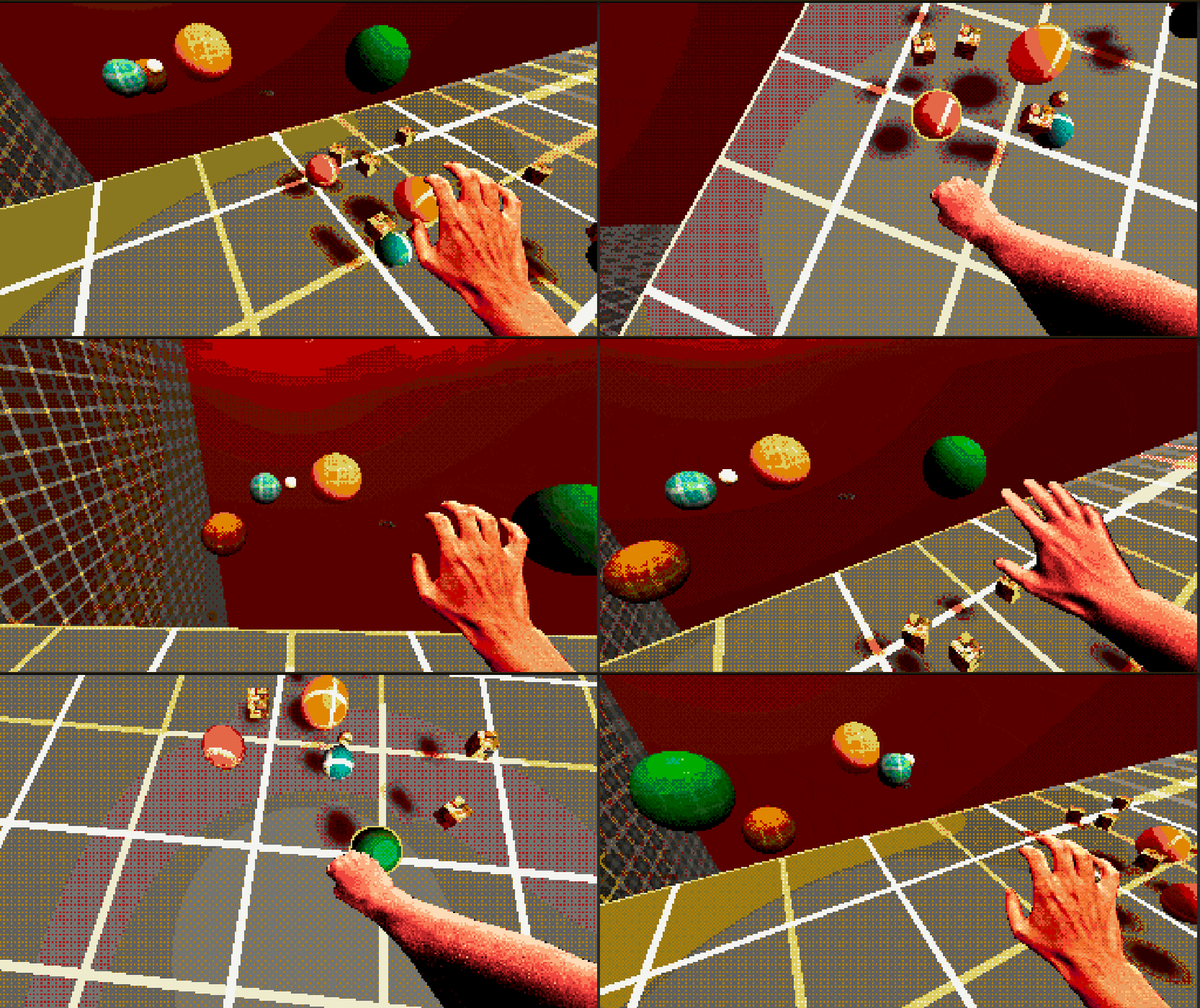
The goal was to create a seamless switch between two “body forms” (a miniature planet and the full-scale world) so that player inputs, physics, and animations remain smooth during transitions.
Workflow & Design
First, I collaborated with level designers to document how each form should react to world geometry and user input. We sketched flow diagrams showing state transitions, data handoffs (position, velocity, animation), and edge-case handling (e.g., mid-air or colliding form switches).
Core Implementation
I built a lightweight, state-driven C# “Bridge” class that listens for form-switch events. When triggered, it copies transform and animation parameters in real time from the primary rig to the secondary (planet) rig.
To ensure both rigs stayed in sync, I extended Unity’s Spline system to mirror root transforms between them. During a transition, a coroutine smoothly interpolates position, rotation, and scale over a configurable duration—preventing any jitter on complex geometry.
Finally, I added collision checks: if the target form’s collider would intersect world geometry, the switch is deferred until a safe frame, avoiding “stuck” states.
Results
The final system produced an almost instantaneous, polished planet-shift feel. Player feedback and immersion rose significantly, thanks to smooth blending and reliable edge-case handling.
Shader “Consumption” Rework & Effects
Gameplay Tuning
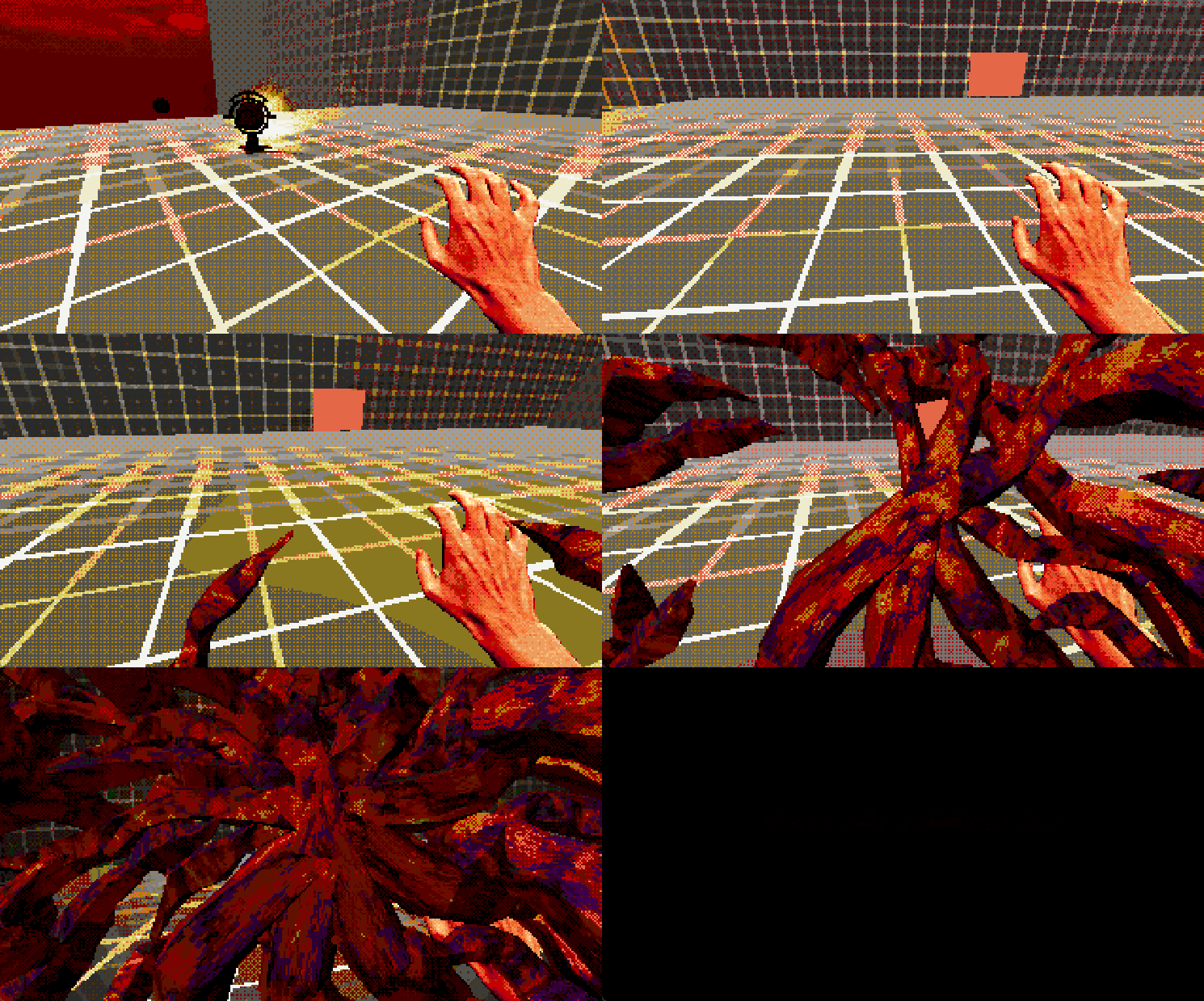
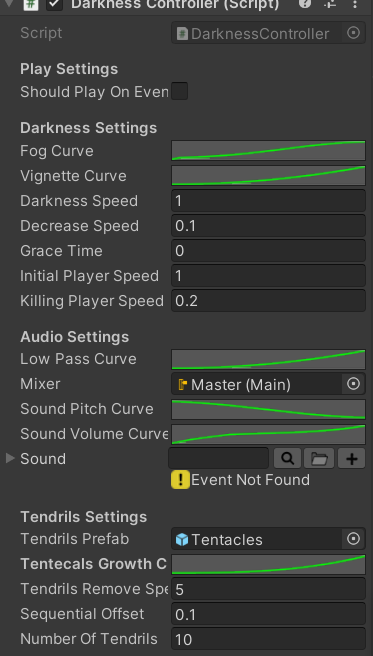
We overhauled the original “darkness” damage-over-time mechanic, adding tentacle visuals to enhance player immersion. Damage ticks and radius falloff were tuned so players could anticipate and react to encroaching darkness.
Anticipatory VFX cues (tendrils) appear just before the darkness consumes the player—providing clear visual telegraphing and improving fairness.
Tentacle System
I implemented a runtime system to spawn tentacle meshes around the player. Each tentacle spawns at a random rotation, then grows exponentially via shader parameters when the player is within the danger radius. If the player escapes, the tentacles recede smoothly.
Custom Spline, Mesh Deforming & Gravity Shifting
Custom Spline Classes
I wrote core spline classes to support curves in the game:
SplinePoint: Stores position, tangent handles, and a
“roll” angle to manage twist.
SplineSegment: Connects two points with a cubic Bézier
interpolation, exposing GetPoint(t), GetTangent(t),
and GetNormal(t).
Spline: Manages a list of points, builds segments on
edit, and caches uniform-length samples for real-time queries.
Editor Integration
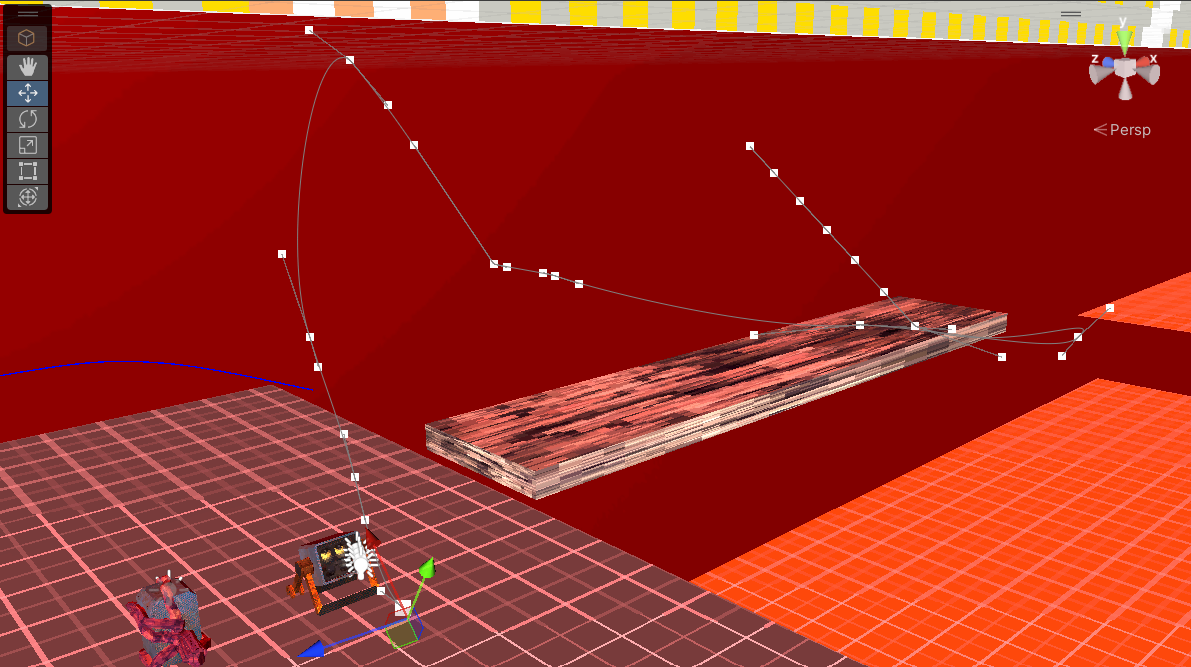
Using Unity’s OnSceneGUI, I drew point handles in the Scene
view so designers could click, drag, or delete spline points. Custom
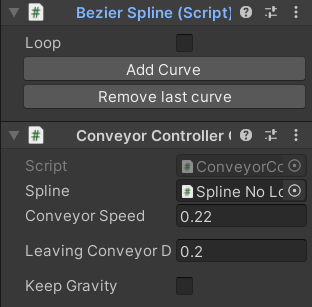
inspector buttons like “Add Curve” and “Undo Last” updated the point list
and auto-committed changes to version control.
Mesh Deformation
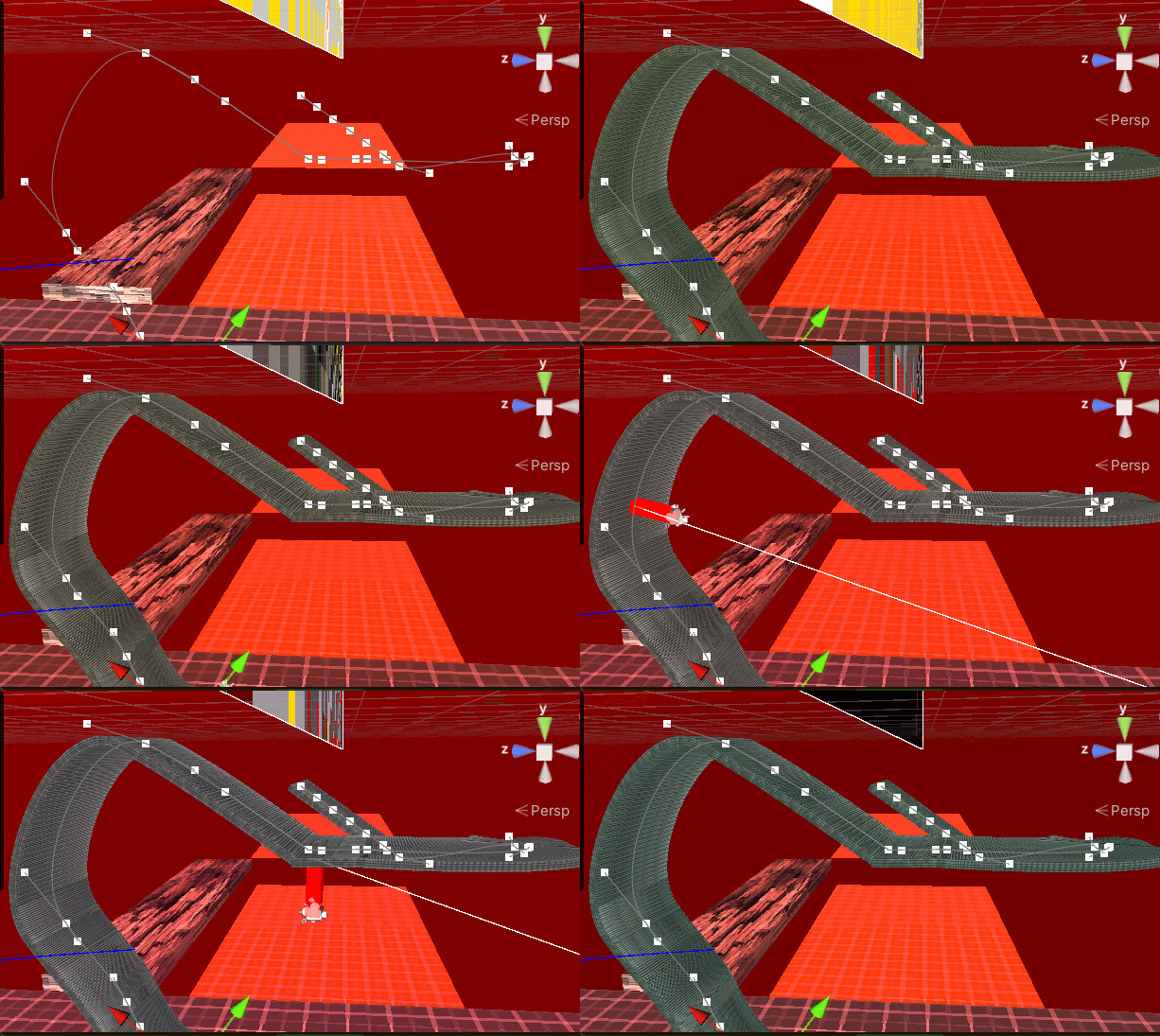
Once splines were in place, I built a vertex-remapping system that “bends” meshes along curves. Each deformable mesh uses a UV channel where U = distance along spline (0–1) and V = lateral offset. At runtime, I sample:
position = spline.GetPoint(u)tangent = spline.GetTangent(u)- Construct a Frenet frame (tangent, normal, binormal)
- Apply lateral offset along binormal so the mesh wraps smoothly
Gravity Reorientation
To allow walking on walls or inverted slopes, I dynamically shifted the gravity vector using sampled spline normals:
1. Sample the nearest spline normal at the player’s attach point via
GetNormal(u).
2. Compute desiredDown = –sampledNormal.
3. Slerp from the current gravity vector to desiredDown over
0.25s for a smooth transition.
4. Feed that gravity into our custom controller (controller.ApplyGravity())
and rotate the player’s root so “up” always opposes gravity.
Blending normals at spline junctions and clamping interpolation mid-air prevented abrupt camera flips, ensuring stable camera and character behavior.
Editor Tool: Level Selector
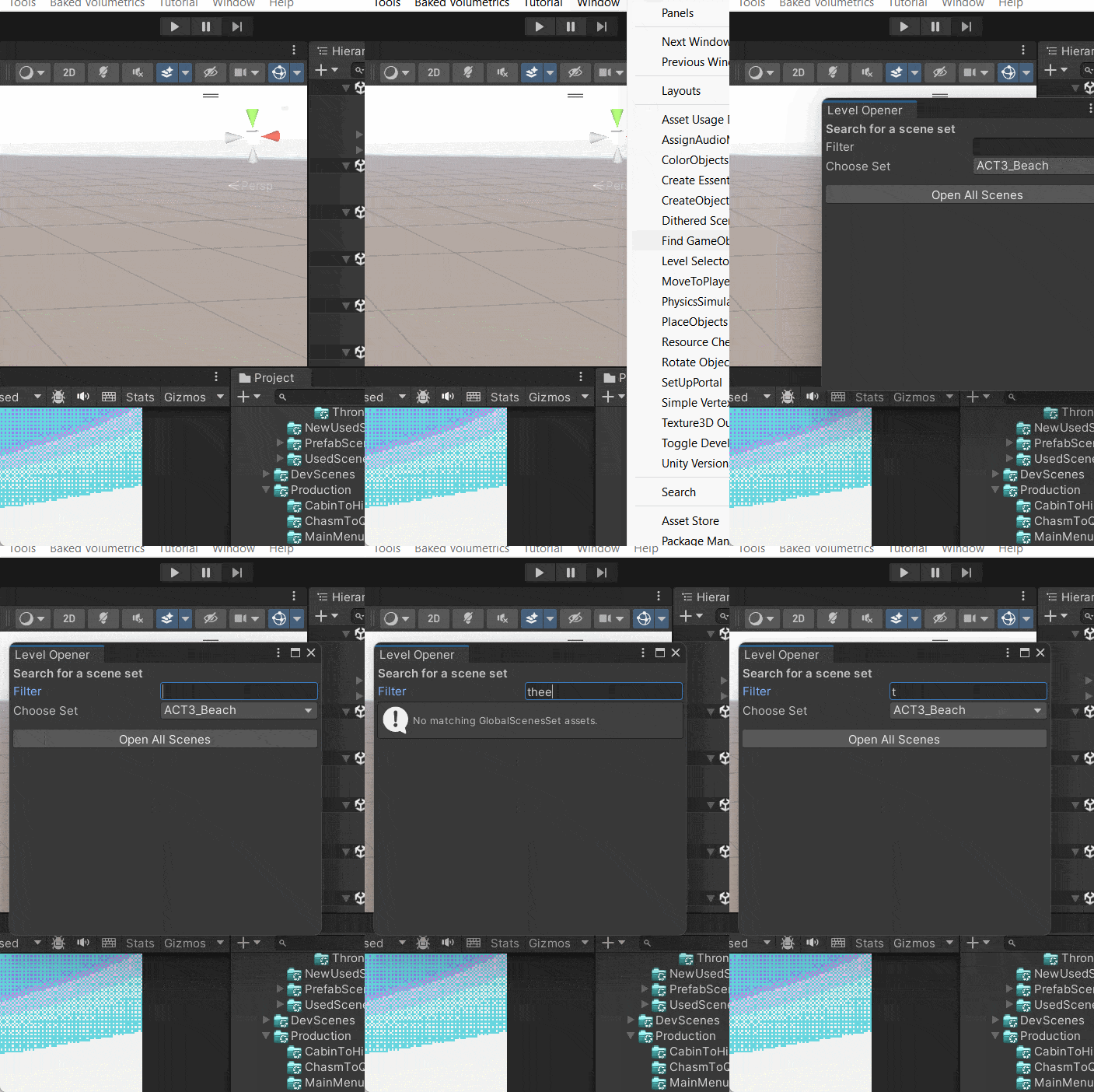
To streamline opening multiple scenes for each level (avoiding merge conflicts), I built a Unity Editor window using ScriptableObjects. Designers and developers could pick a level in a search-bar interface, and the tool would open all required scenes automatically.
Behind the scenes, each ScriptableObject stored a list of scene paths. The EditorWindow allowed filtering these objects via a search field, then loaded or unloaded scenes based on the user’s selection.